
Firmware and Apps
Each 16bit firmware ships with a single app built into it — the firmware and the app are the same binary. The web UI configures the app that is currently loaded, but it cannot switch apps. To use a different app (Sampler, Polysynth, FxRack, Elab, or Monosynth), you must flash the firmware built for that app. See Updating the Firmware.
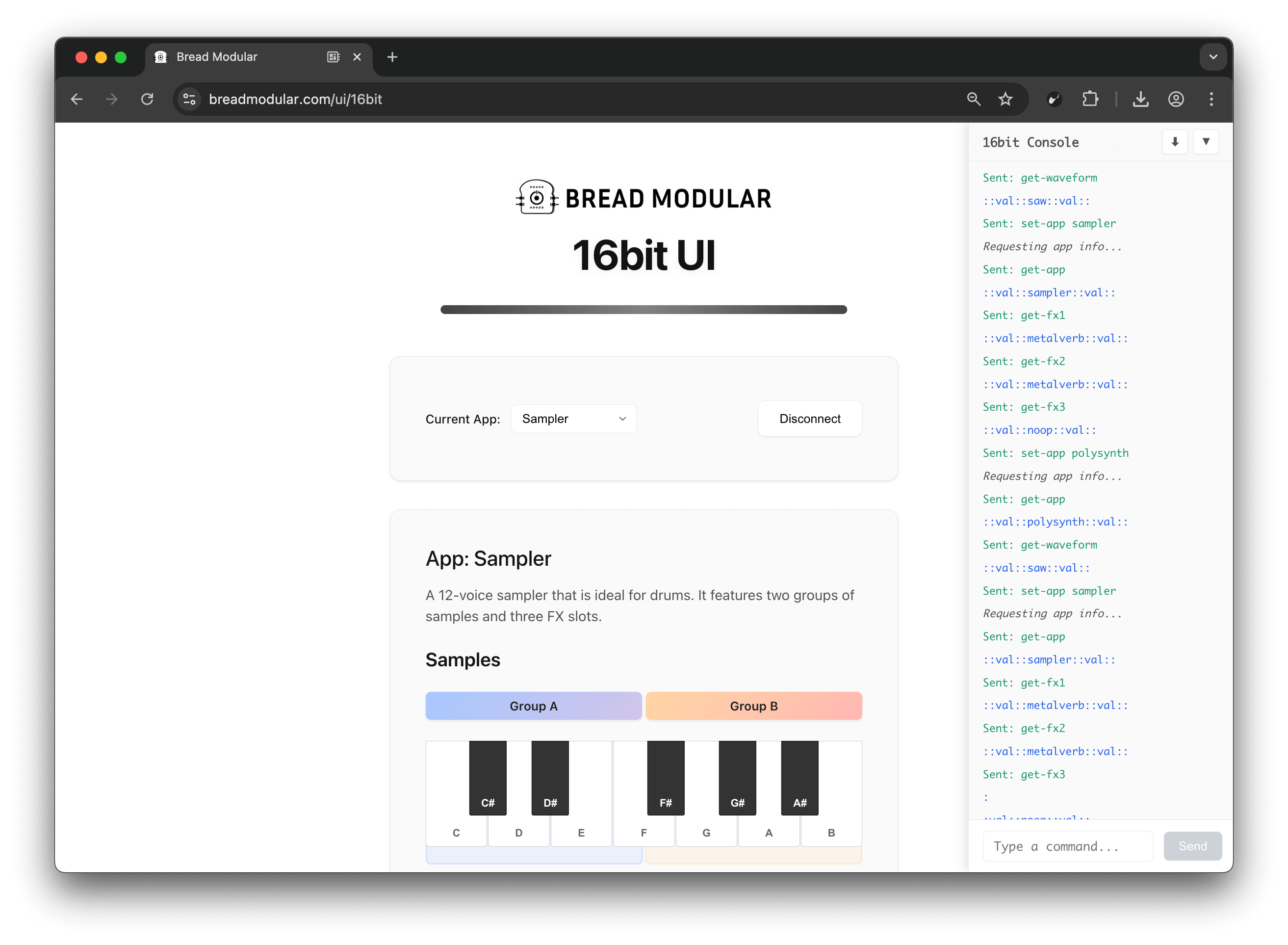
Using the Firmware
- First, plug 16bit into the Bread Modular base. Make sure you've powered it on.
- Then connect 16bit to your computer (PC or Mac) using the USB-C socket on top. (You may also use any Android device, but you can't use any iOS device)
- Visit the following web app: https://breadmodular.com/ui/16bit
- Click the connect button and select your 16bit device (usually named as 16bit)
- Now you can configure the loaded app. (You cannot switch apps from the UI — to change apps, flash the matching firmware.)
Watch the following video for more details:
More from 16bit
Introduction to 16bit
Learn about 16bit, BreadModular's realtime audio computer for effects and complex sound sources.
App - Sampler
Learn about the 12-voice drum sampler app with three effects.
App - Polysynth
Learn about the 9-voice polyphonic synth with Moog-like ladder filter.
App - Monosynth
Learn about the monophonic Pulsar-23 "BASS"-style synth with a shape-morphing oscillator and a knob-motion recorder.
Using the MCC Module
Learn how to use the MCC module to control MIDI CCs and patch multiple modules together.
Updating the Firmware
Learn how to update your 16bit firmware to get the latest features and apps.